
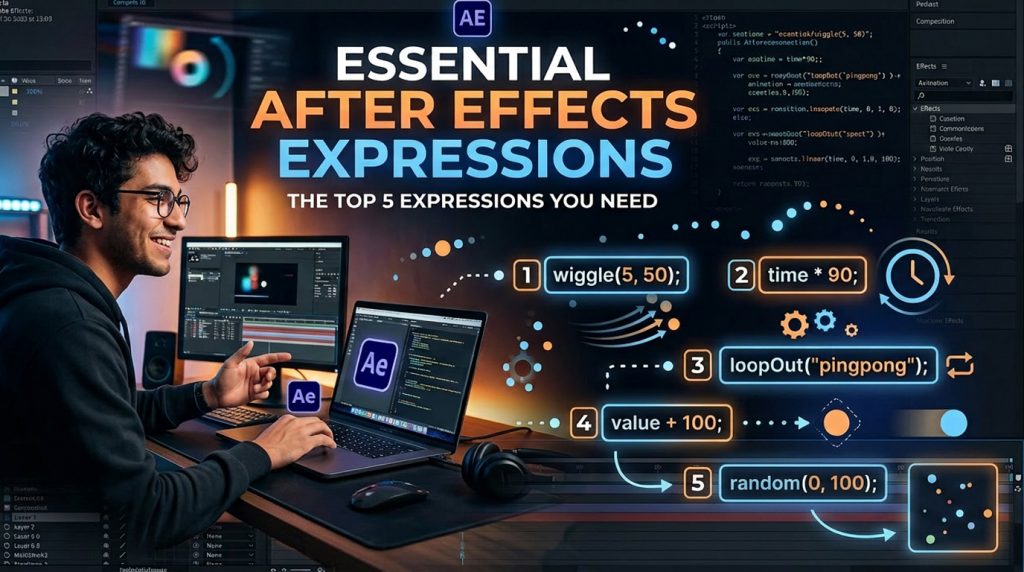
In the professional world of motion graphics, efficiency is just as important as creativity. While keyframing every single movement by hand gives you total control, it is a massive time-sink that slows down your production schedule. This is where Expressions come in.
Expressions are small snippets of JavaScript-based code that you can apply to almost any property in Adobe After Effects (position, opacity, rotation, etc.). They allow you to automate movement, create repeating loops, and generate complex animations without ever touching a keyframe. If you want to scale your video editing business and create reusable Motion Graphics Templates (MOGRTs), learning these five expressions is your first step.
How to Use Expressions
To apply these, hold the Alt (Windows) or Option (Mac) key and click the stopwatch icon next to the property you want to animate. A text field will open at the bottom of your timeline where you can paste these snippets.
1. The loopOut() Expression
The most essential tool for any motion graphics artist. If you have an icon that pulsates or a shape that moves back and forth, you don’t need to copy-paste keyframes.
- The Code:
loopOut("cycle") - Why use it: It repeats your keyframes indefinitely. If you have a 2-second animation of a loading bar, this expression will keep it moving smoothly for the entire duration of your video without you having to touch the timeline.
2. The wiggle() Expression
This is the secret behind “organic” motion. Hand-animating a camera shake or a floating object usually looks robotic. The wiggle() function adds randomized movement.
- The Code:
wiggle(2, 50) - Breakdown: The first number (2) is the frequency (times per second), and the second number (50) is the amplitude (how far it moves in pixels).
- Why use it: Perfect for subtle camera hand-held effects, flickering lights, or making floating UI elements feel alive.
3. The time * speed Expression
Need an object to rotate or scale infinitely? Instead of setting a start and end keyframe, use the time expression.
- The Code:
time * 100 - Why use it: It creates constant, uniform motion. For example, applying this to a “Rotation” property will make a clock-style hand or a loading spinner rotate forever at a steady speed.
4. The valueAtTime() Expression
This allows you to link the animation of one layer to another, but with a delay. This is how high-end editors create those “chained” text reveals where one line of text follows another with a precise offset.
- The Code:
thisComp.layer("Layer 1").transform.position.valueAtTime(time - 0.5) - Why use it: The
- 0.5at the end creates a half-second delay. It makes complex group animations look sophisticated and timed to perfection without manual labor.
5. The random() Expression
Sometimes, you want an element—like the number of subscribers in a counter or a glitching text effect—to feel truly chaotic.
- The Code:
random(0, 100) - Why use it: This generates a random value between 0 and 100 for every single frame. It’s perfect for digital “data crunching” animations in documentary-style tech videos where you need to show fast-moving numbers.
The Professional Advantage: Creating MOGRTs
When I started creating my own YouTube assets, I found that recreating the same lower-thirds and call-to-action buttons for every video was killing my efficiency. By using these expressions, I built a library of Motion Graphics Templates (MOGRTs).
Now, when I start a new project in Premiere Pro, I simply drag and drop my pre-made MOGRTs. The wiggle expression makes my text overlays look professional, and the loopOut expression ensures my backgrounds are always seamless.
Pro Tip: If you ever get an error, check your syntax—expressions are case-sensitive. Always start by experimenting on a simple shape layer until you get the hang of how the code interacts with the transform properties.
Do you currently use expressions in your After Effects workflow, or do you prefer to hand-keyframe everything for total control? Let me know which expression you think will save you the most time on your next project!
Leave a Reply